5 min read
Useful IntelliJ hotkeys and workflows on macOS
I do all of my development work in IntelliJ on Mac, and this is a collection of tips, tricks, and shortcuts I use to get the most out of it.
Hotkeys
Action Menu
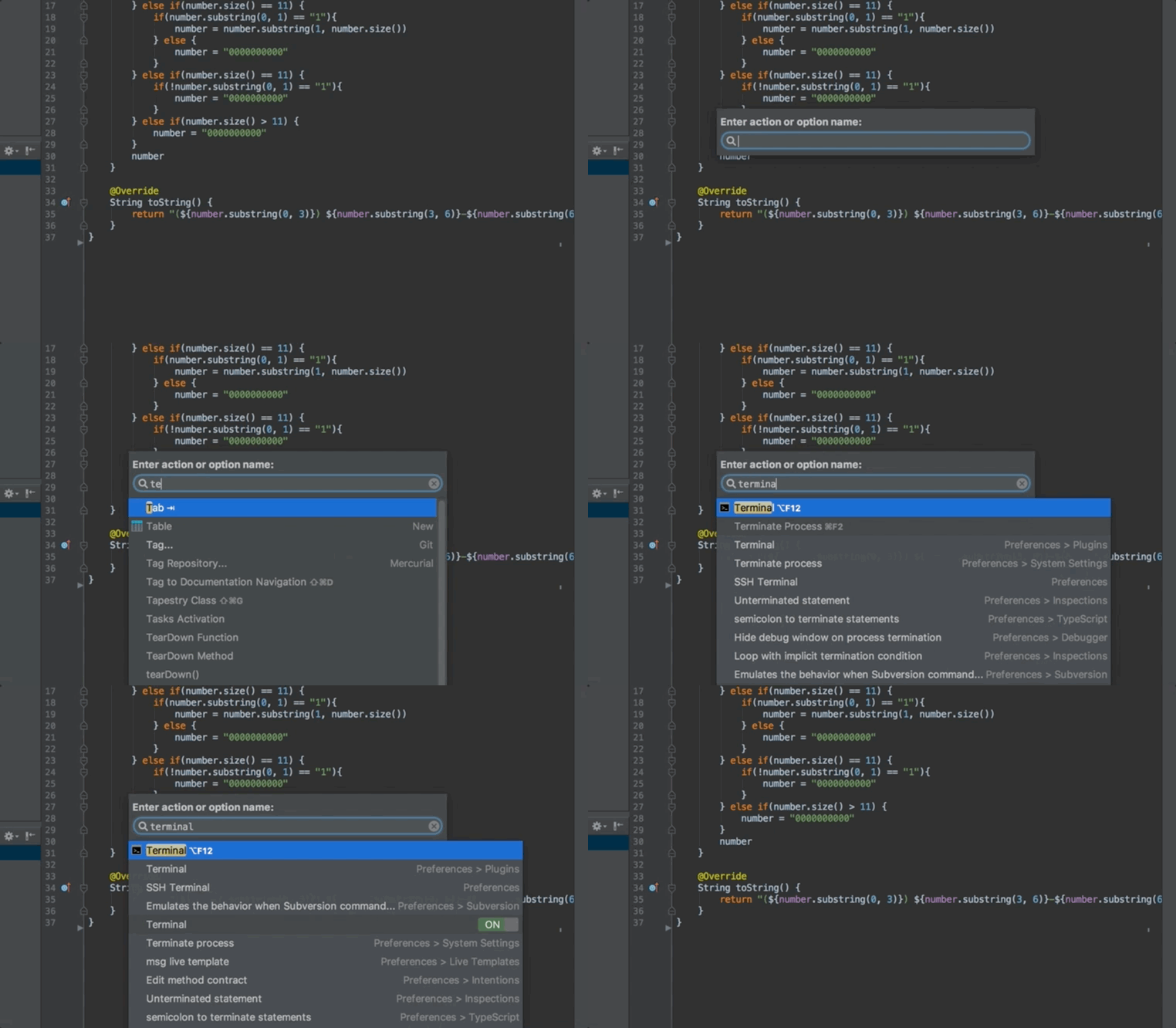
⌘ + ⇧ + A activates the super-versatile Action Menu. Just type in whatever action you’re looking for, whether that’s commenting your code or popping open a terminal. This menu is extremely useful for when you forget a hotkey (as long as you don’t forget the hotkey for the action menu itself).
Navigate to IDE components
IntelliJ has a convention of ⌘ plus a number to pull up various IDE tabs. Here’s a list of them:
| Command | IDE component |
|---|---|
| ⌘ + 1 | Open Project tab |
| ⌘ + 2 | Open Favorites tab |
| ⌘ + 3 | Find |
| ⌘ + 4 | Open Run tab |
| ⌘ + 5 | Open Debugger |
| ⌘ + 6 | Open Project ToDos |
| ⌘ + 7 | Open Project Structure tab |
| ⌘ + 9 | Open Version Control tab |
| ⌥ + F12 | Open Terminal |
(I’m not sure why ⌘ + 8 doesn’t seem to activate anything, at least on my machine as I’m writing this. It may be that I don’t have the feature activated that those correspond to.)
Navigate code
| Command | Function |
|---|---|
| ⌘ + B | Jump to source (this can also be done by ⌘ + clicking on the code) |
| ⌘ + N | Go to class (On some keyboard layouts this is ⌘ + O) |
| ⌘ + ⇧ + N | Go to file (On some keyboard layouts this is ⌘ + ⇧ + O) |
| ⌘ + ⌥ + ⇧ + N | Go to symbol or method (On some keyboard layouts this is ⌘ + ⌥ + ⇧ + O) |
| ⌥ + F7 | Find usages of code at cursor |
| ⌃ + ⌥ + O | Optimize imports. This removes any unused imports and consolidates multiple imports from the same packages based on a threshold (default 5, iirc) |
| ⌃ + ⇧ + F | Find in path |
| ⇧ + ⌘ + V | Show clipboard stack |
| ⇧ + F12 | Show overview of current file, methods, etc. |
| ⇧ + ⇧ | Search everywhere |
| ⌘ + G | Go to line number |
| ⌘ + F1 | View description of error or warning, if there is one present |
| ⌘ + F12 | Find members in current file. Lets you quickly jump to methods. |
Navigate windows
| Command | Function |
|---|---|
| ⌘ + E | Go to recent files |
| ⌘ + ⇧ + E | Go to recently edited files |
| ⇧ + F4 | Externalize editor |
| ⌘ + F4 | Close current file in editor |
| ⌘ + ⇧ + F12 | Hide all windows and maximize current window |
Editor keyboard shortcuts
| Command | Function |
|---|---|
| ⌘ + ⇧ + ↵ | Complete statement. In Java, for example, this automatically adds semicolons on lines. |
| ⌘ + J | Live Templates. Basically code completion. Really handy for generating boilerplate. |
| ⌘ + X | Cut line |
| ⌘ + Y | Delete line |
| ⌘ + D | Duplicate line |
| ⌘ + W | Incremental selection. Expands the selection around the cursor. |
| ⌘ + ⇧ + T | Generate a test/in a test class, go to class under test |
| ⌘ + ⌥ + Z | Revert changes |
| ⌘ + ⇧ + ⌫ | Go to last edited location |
| ⌘ + ⇧ + U | Toggle between upper and lower case |
Debugger keyboard shortcuts
| Command | Function |
|---|---|
| ⌘ + 5 | Open Debugger |
| ⇧ + F10 | Run code without debugger |
| ⇧ + F9 | Run code with debugger |
| ⌘ + F8 | Set a breakpoint |
| F9 | Continue from breakpoint |
| F8 | Step over |
| ⇧ + F8 | Step out of |
| F7 | Step into |
Version control keyboard shortcuts
| Command | Function |
|---|---|
| ⌘ + 9 | Open Version Control tab |
| ⌘ + ⌥ + A | Add file to version control. Can be used from within a file or in the Version Control pane |
| ⌘ + K | Commit selected files |
| ⌘ + ⌥ + Z | Revert changes |
| ⌘ + D | Show diff |
| ⌘ + ⇧ + U | Unshelve changes |
Navigating the Project view
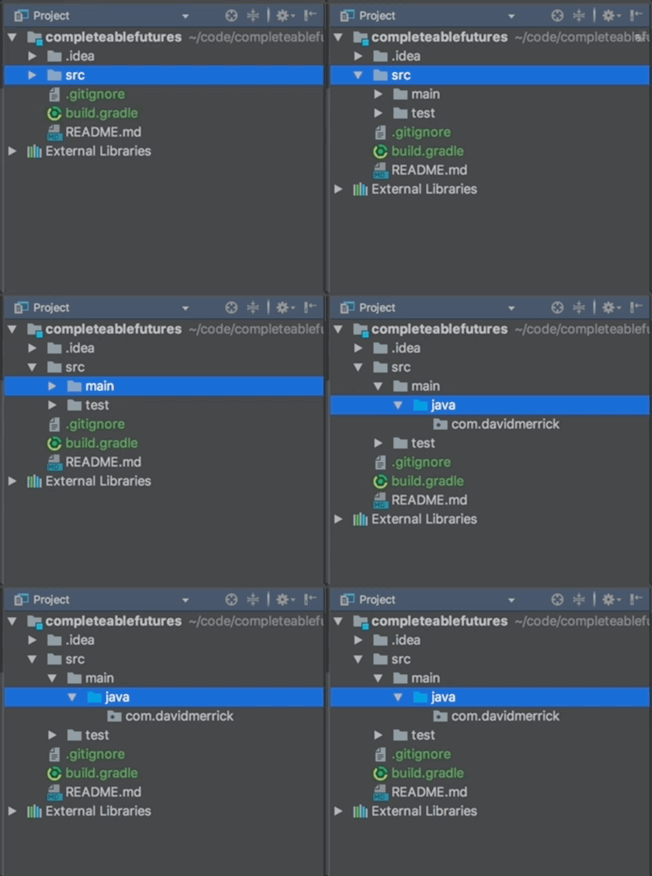
You can use the ← and → keys to expand and collapse folders in the tree in the Project view.
Cycle through open files and tool windows
Ctrl + Tab lets you cycle through any processes you have open in the current session.
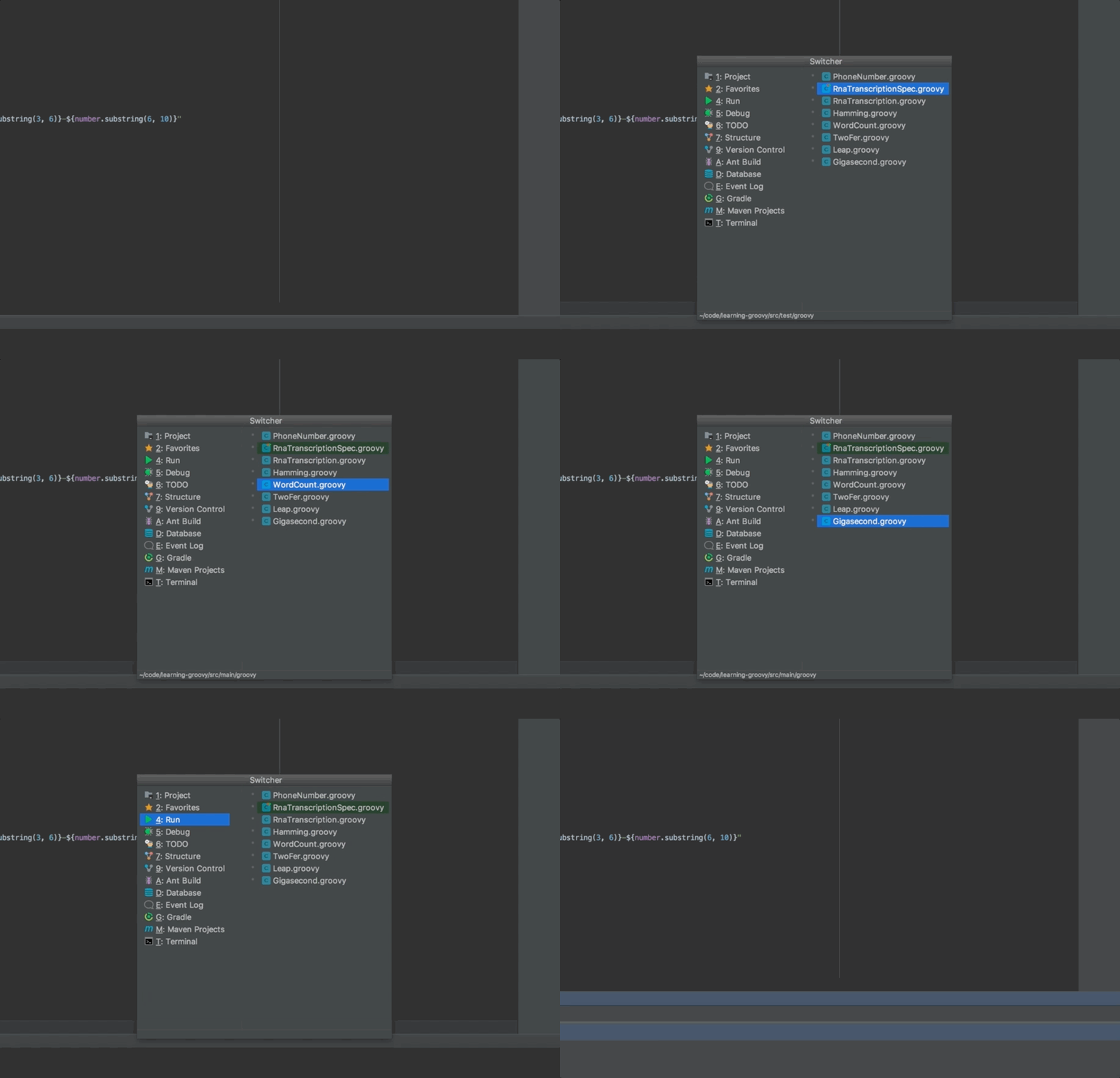
IntelliJ refers to this as the “Switcher” and it’s documented here.
Local history
Delete something on accident? Inadvertently get yourself into a pickle with git? Never fear, local history is your best friend. Get to it by going to VCS -> Local History -> Show History. It will show all changes made to all your files in chronological order, and you can revert back to any of them. You can also view local history for a file. Simply right-click the file in the editor window, then select Local History -> Show History.
UI
Show/hide the items along the edges of the IDE
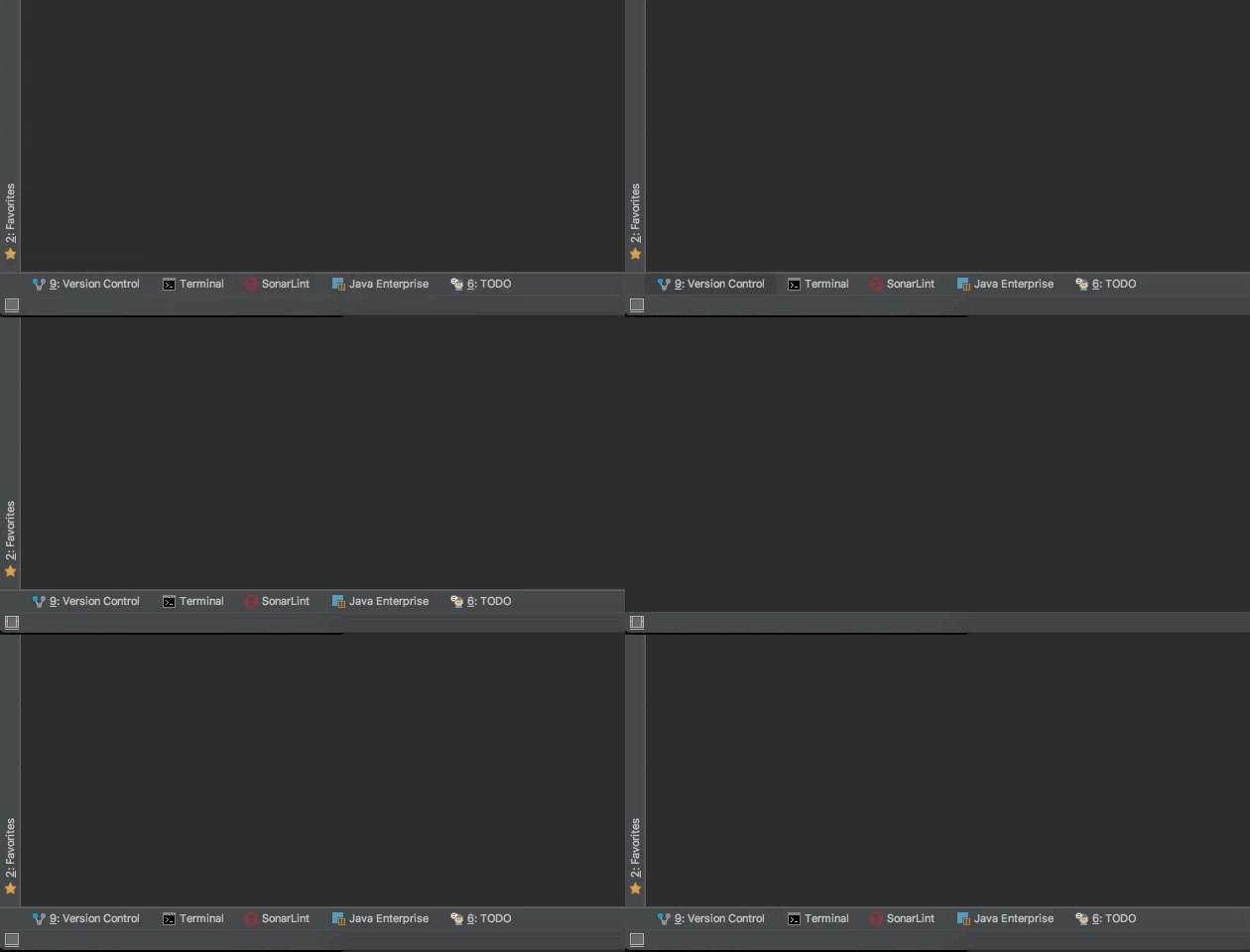
Click the icon in the bottom left-hand corner of the window to toggle the visibility of the edge items, like projects, Maven, etc. I usually prefer these to be shown.
Variable highlighting
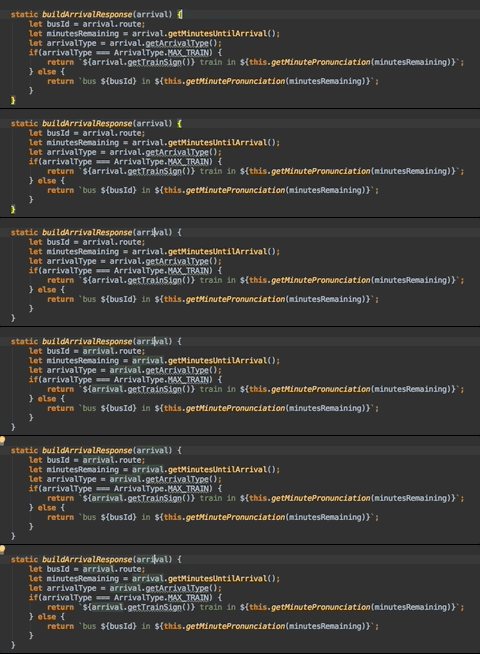
Clicking on a variable highlights it throughout a file.